Manga tells stories differently from Western comics. The page flows right-to-left, panels are taller and more intimate, action sequences explode across irregular shapes, and silence is treated as a storytelling tool. If you want to make your own manga, you need blank manga panels designed for this style — not generic Western comic book grids.
This guide covers the most important manga page template formats — the same layouts work as an anime comic book page template printable at home — plus how to use them and get a manga panel layout template free download straight from BlankComic's free online editor.
Free Printable Blank Manga Panels (PDF)
Two blank manga page templates with B5 trim, bleed and safe-area guides, printable on US Letter or A4.
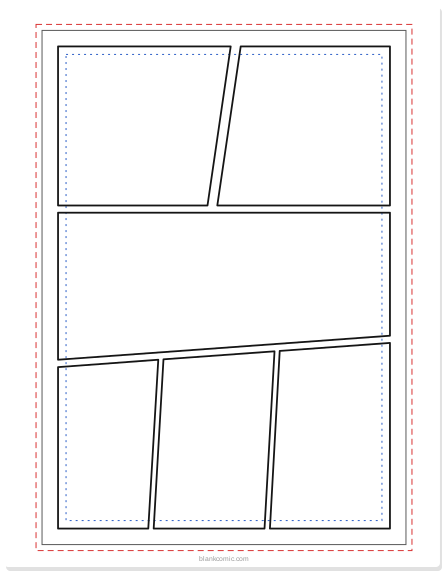
Blank manga page, dynamic panels
Slanted panels for action, with B5 trim, bleed and safe guides.
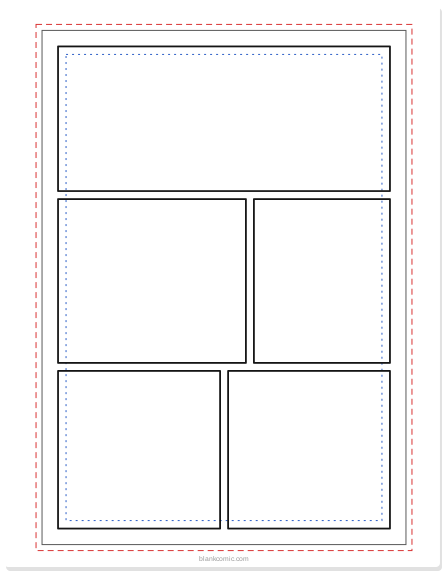
Blank manga page, classic layout
A wide opener, then large and small panels for dialogue.
Key Differences Between Manga Panels and Western Comic Panels
| Feature | Western Comics | Manga |
|---|---|---|
| Reading direction | Left to right | Right to left |
| Page size | 6.625 × 10.25 in (standard) | 5 × 7.5 in (Tankobon) |
| Panel shape | Usually rectangular grids | Often irregular, diagonal, or overlapping |
| Black & white | Often colored | Traditionally black & white (with screentones) |
| Panel count per page | 4–9 | 4–8 (highly variable) |
| Action panels | Contained within borders | Often borderless, breaking the page |
The Most Common Blank Manga Panel Layouts
4-Koma (4-Panel Vertical Strip)
The yonkoma or 4-koma is the most famous manga format. Four equal panels stacked vertically in a single column — the manga equivalent of a newspaper comic strip. It follows a strict narrative rhythm:
- Panel 1 — Ki (Introduction): Establish the scene and characters
- Panel 2 — Shō (Development): Build on the setup, raise a question
- Panel 3 — Ten (Twist): An unexpected turn or escalation
- Panel 4 — Ketsu (Resolution): The punchline or conclusion
4-koma strips are typically 53 mm wide × 170 mm tall (printed) or 400 × 1200 px (digital).
Standard Manga Page Layout (5–7 Panels)
A typical manga story page uses 5–7 panels per page in an irregular arrangement. Key characteristics:
- Panels vary significantly in size to control reading pace
- Wide horizontal panels are used for establishing shots or emotionally heavy moments
- Tall narrow panels create urgency and speed
- Small panels slow down time, focusing on detail or reaction
Action Page Layout
For fight sequences and dramatic moments, manga artists use dynamic asymmetric layouts: overlapping panels, diagonal borders, and borderless (bleed-edge) panels that fill the entire page. These give a sense of kinetic energy that a structured grid simply can't deliver.
Splash Page
A single panel that fills the entire page — used for major reveals, chapter openings, or climactic moments. Manga splash pages often have environmental detail and character poses that would be lost at smaller sizes.
Building Blank Manga Panel Layouts in BlankComic
BlankComic's free-draw panel system is ideal for manga layouts. Unlike tools that lock you into fixed grid templates, you can draw any panel shape, overlap panels for action sequences, and set individual panels to have no border for that borderless bleed effect.
Set Up Your Canvas
For a standard manga Tankobon page, set your canvas to 5 × 7.5 inches (or 1500 × 2250 px at 300 DPI). For a 4-koma, use a custom size of 400 × 1200 px for digital or 53 × 170 mm for print.
Plan Your Panels Right-to-Left
Remember: manga reads right-to-left. Place your first panel in the top-right, and the reading flow moves leftward and downward. If you're building a digital manga for Western readers, you can opt for the standard left-to-right direction — but plan it before you start drawing panels.
Use Irregular Sizes for Drama
Don't use equal-sized panels. Make your important moments larger. A dramatic reaction deserves a half-page panel. A quick action beat gets a thin narrow slice. Varying panel size is one of the core storytelling tools in manga.
Overlap for Action
For fight scenes, draw panels that overlap each other. In BlankComic, try the slanted, diagonal and chevron panel shapes, or add a picture that extends past a borderless panel, so one moment appears to burst into the next.
Export in Black & White
Manga is traditionally black and white. In BlankComic, set panel borders to black, keep backgrounds white or light gray, and export as PNG. For screentone effects (those halftone dot patterns in manga), add them in a separate image editor after export.
Manga gutters (the gaps between panels) tend to be smaller than in Western comics — often just 3–5 mm in print vs. the 6–10 mm common in US comics. Tighter gutters create a faster, more intense reading pace.
Blank Manga Panel Dimensions: Quick Reference
| Format | Size (Print) | Size (Digital) | Panels Per Page |
|---|---|---|---|
| Tankobon page | 5 × 7.5 in | 1500 × 2250 px | 5–7 |
| 4-Koma strip | 53 × 170 mm | 400 × 1200 px | 4 (fixed) |
| B5 magazine page | 7.2 × 10.1 in | 2160 × 3030 px | 5–9 |
| Webtoon-style (mobile) | N/A | 800 px wide × variable | 6–12 per episode |
From Blank Manga Panels to Finished Pages
Once you have your blank manga panel layout, here's a simple workflow to go from empty panels to a finished page:
- Thumbnail first — sketch tiny rough drawings in each panel to plan composition before committing to detail.
- Print or export your blank layout — use BlankComic's PDF export for print-on-paper drawing, or PNG export for digital drawing in Clip Studio Paint, Procreate, or similar tools.
- Draw your lineart — pencil first, then ink over a lightbox or digitally.
- Add screentones or shading — traditionally done with adhesive screentone sheets; digitally done with halftone pattern brushes.
- Add speech bubbles and sound effects — return to BlankComic to add speech bubbles over your finished artwork, or handle them in your digital art app.
For tips on scanning your hand-drawn manga pages back into a digital format, see our guide on how to scan hand-drawn comic pages. For export format advice, see our Export Guide.
For four-panel vertical strips, use the 4-koma manga template and kishōtenketsu guide. Exact print sizes for manga and Western pages are compared in the comic book page size chart.
Frequently Asked Questions
Can I make manga panels that read right-to-left in BlankComic?
Yes. BlankComic doesn't enforce a reading direction — you place panels wherever you like. Simply position them right-to-left as you draw them.
What's the best page size for blank manga panels?
For print: 5 × 7.5 in (Tankobon). For digital-first: 800–1200 px wide. For mobile webcomics: 800 px wide × any height.
Can I add screentones in BlankComic?
BlankComic doesn't have built-in screentone brushes, but you can add panel fills with repeating dot/line patterns using the pattern fill option in the color picker. For full screentone support, export your page and continue in Clip Studio Paint.
📚 Draw manga panels by hand? Combine the digital editor with a physical blank comic book by M M Milton — plan your page online, then ink directly in the paperback.